A keyframe editor for the UI you already built
Wrap the views you want to move, run your app inside the Inertia editor, and drag them around on a timeline. No exported video, no parallel design file — the thing you animate is the real view in your real app.
macOS editor · iOS 17+ / minSdk 26 / React 18.3
Why Inertia
Your app is the canvas
Design tools export something that plays next to your UI rather than being it. Code-first libraries keep you in a compile-run-tweak loop where a 40 ms timing change costs a rebuild. Inertia sits between the two.
Real components
A real RoundedRectangle, a real Card composable, a real <div>. No re-implementation and no design file that drifts from the app.
Native playback
SwiftUI plays tracks through KeyframeAnimator; Compose and React sample the same tracks on their own clocks. Nothing is rasterized.
Live editing
Your app connects to the editor over a local WebSocket, reports its tagged hierarchy, and receives updates as you edit.
How it works
Three steps, then it’s in your repo
Tag a view
Wrap anything you want to move with an id. That one call is the whole integration — shapes and tracks attach to the id.
Drag it on a timeline
Run the build inside the editor, select a tagged view, and move, rotate, scale, or fade it. The playhead is shared with the running app.
Commit the file
The editor writes an animation.inertia file. Designers scrub the timeline, developers git add the result — one file, three runtimes, identical ids.
The editor
Scrub against a build that’s actually running
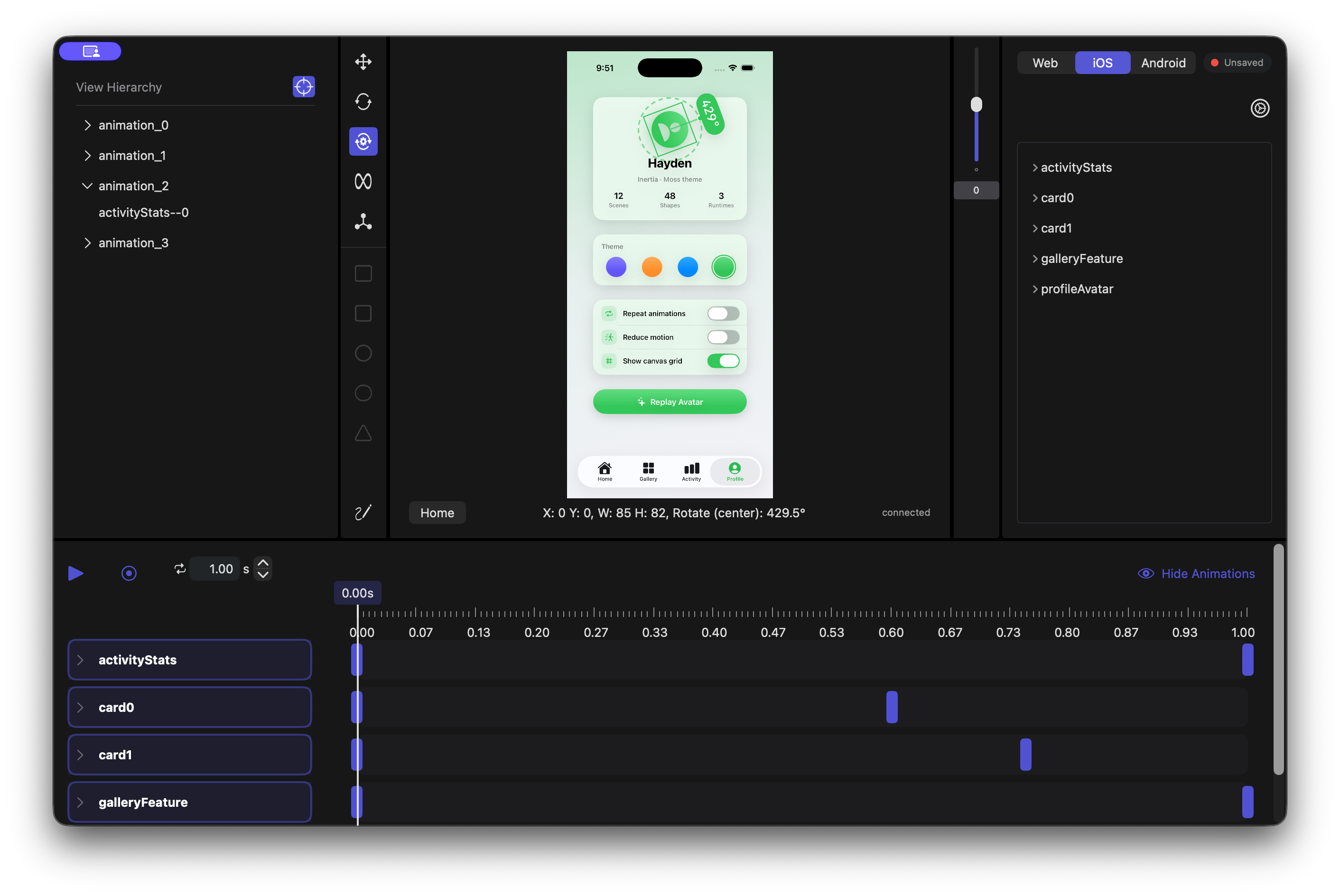
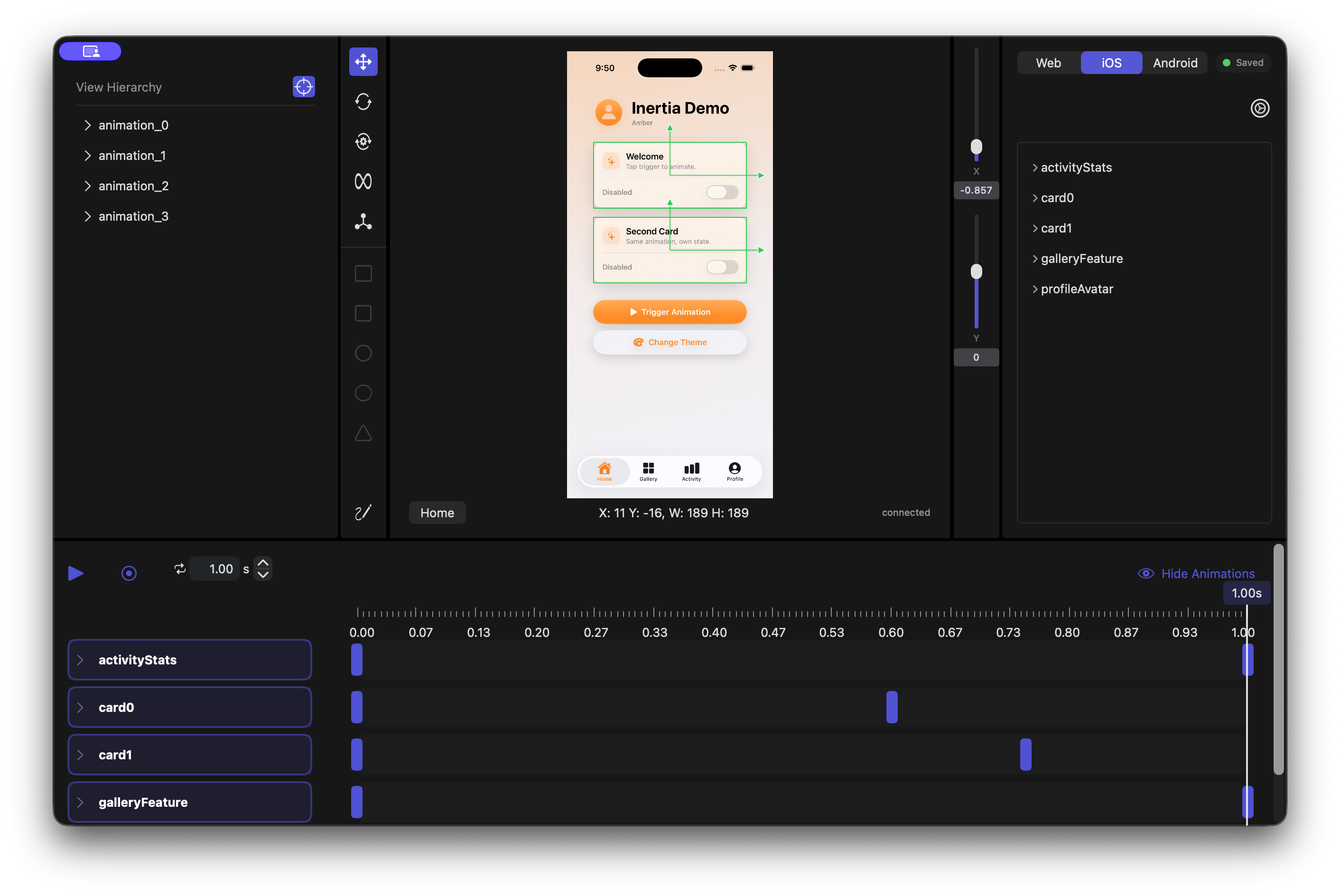
The centre panel is your app — installed and launched on the iOS Simulator, an Android emulator, or your dev server in a WebView. Select a tagged view, drag it, and the keyframe lands on the timeline.
Runtimes
One API, three platforms
Every runtime has the same three pieces: a container that owns the animation data, an actionable wrapping each view you want to move, and a playback handle for starting it.
- trigger starts a track; one arriving mid-run joins the run in progress.
- restart rewinds — every actionable in a container is drawn from one clock.
- cancel returns an animation to its initial values and leaves it there.
- isRepeating switches looping and play-once at runtime.
import SwiftUI
import Inertia

InertiaContainer(dev: isEditor, id: "animation") {
    ContentView()
}

struct ContentView: View {
    @Environment(\.inertiaDataModel) private var inertia: InertiaDataModel!

    var body: some View {
        VStack(spacing: 16) {
            Card(title: "Welcome")
                .inertia("card0")   // tag the view you want to move

            Button("Trigger") { inertia.restart("card0") }
        }
    }
}| Runtime | Package | Editor target | Shapes |
|---|---|---|---|
| SwiftUI | Inertia (SPM) | iOS Simulator, driven through simctl | Metal |
| Jetpack Compose | inertia-compose (JitPack) | Android emulator, over adb | OpenGL ES 2.0 |
| React | inertia-react + inertia-base | Your dev server, in a WKWebView | WebGL |
The handoff
One .inertia file
The editor writes an animation.inertia file into a project folder you version alongside your source — one record per tagged id, each a pose plus the track that leaves it.
- translate — an [x, y] offset as a fraction of the container, so a track survives a resize.
- scale, opacity — uniform factor, and 0 through 1.
- rotate / rotateCenter — degrees, anchored top-left or at the view’s centre.
- invokeType — auto starts when the view appears; trigger waits for your call.
{
  "id": "card0",
  "initialValues": {
    "opacity": 1, "rotate": 0, "scale": 1, "translate": [0, 0]
  },
  "invokeType": "trigger",
  "keyframes": [
    {
      "duration": 0.001,
      "values": { "scale": 0, "translate": [-0.008, -0.269] }
    },
    {
      "duration": 2.011,
      "values": { "rotate": 90, "scale": 1, "translate": [-0.013, 0.278] }
    }
  ],
  "shapes": []
}
Also in the box
Details that make it usable
Alignment guides
Drag a view and it snaps against its neighbours, on SwiftUI and Compose alike.
Vertex shapes
Author geometry behind a view — rectangles, ovals, triangles, or raw vertices with per-corner colour. No shape API to call.
Shared playhead
Pause, resume, seek and loop length are shared both ways, so the timeline tracks a running animation.
Editor mode is opt-in
In release, none of the socket code runs. The container loads the animation and plays it on its own clock.
Per-view state
Two views can share one animation id and keep their own playback state — trigger one without touching the other.
Versioned with your app
One .inertia project folder per app, sitting in the repo next to the code it animates.
Get started
Get a view moving in a few minutes
Add the package, tag a view, and open the editor. The quickstart walks all three runtimes end to end.
Download
Get the macOS editor
Leave an email and the build is yours — the editor, the three runtimes, and the sample project the quickstart uses.